
Lead capture form design for B2B service firms: a field-by-field guide

Your website brings in inquiries, but your team still has to ask basic questions before anyone can help. What kind of project? Where? How large? When?
A lead capture form should handle that first conversation without turning it into an interrogation. Adding questions isn’t the goal. Giving your team enough context to respond is.
This opens our lead-generation and conversion rate optimization (CRO) series: practical ways to make your website behave more like a full-time inbound employee, generating, qualifying, and routing leads.
Your lead capture form should qualify, not just collect
A lead capture form collects visitor information with the goal of turning interest into customers. For B2B services, design that intake around the next decision, not just the contact record.
Every question should change an action: whether you can help, who should respond, or what happens next.
Start with your team’s first-response routine. Which answers do they keep chasing? Which ones can wait until a conversation?
For the broader website strategy, see our guide to generating qualified B2B leads. Here, we’re focusing on the intake itself.
Required versus optional fields
Require information you can’t act without. Leave useful-but-nonessential details optional.
For consultative inquiries, use name and email as a contact baseline. Make phone optional so visitors can choose whether to offer another contact channel. Adjust that baseline if your service requires a phone call before you can respond.
Use buttons or radio groups for short answer lists, dropdowns for longer lists, and text fields when you can’t anticipate the answer.
For budget and timing, offer ranges and “Not sure yet.” Explain why you’re asking. Don’t treat uncertainty as an automatic disqualifier.
Lead capture forms: a field decision table by industry
Use this table as a starting point, not a mandatory questionnaire. “Required” assumes the answer affects eligibility or routing in your business. If it doesn’t, remove the requirement.
| Industry / field | Visitor-facing question | Decision it supports | First-touch status / input |
|---|---|---|---|
| Construction: project type | “What are you planning: commercial, residential, or infrastructure?” | Whether the project matches your services | Required; buttons |
| Construction: size band | “What’s the approximate budget or square footage?” | Whether the scale fits | Required only if scale determines fit; ranges plus “Not sure” |
| Construction: location | “Where will the work happen?” | Whether it’s within your service area | Required; city/state field |
| Construction: target start | “When would you like work to start?” | Whether scheduling needs fit capacity | Optional unless timing determines fit; timeframe buttons |
| Engineering: discipline | “Which service do you need: structural, civil, mechanical, electrical, or another discipline?” | Which specialist should respond | Required; dropdown or buttons |
| Engineering: project phase | “Is the project in concept, design, construction, or remediation?” | Which team should assess the scope | Required; buttons |
| Engineering: RFP status | “Is this an active RFP, planning, or early exploration?” | Whether to use a procurement or discovery workflow | Required if workflows differ; buttons |
| Engineering: compliance | “Any known permit or compliance requirements?” | Whether specialist review is needed | Optional; short text |
| Fleet services: fleet size | “How many vehicles do you operate?” | Whether the service scale fits | Required if scale determines fit; size bands |
| Fleet services: vehicle class | “Which vehicle types need service: light-duty, heavy-duty, or specialty?” | Whether your equipment and capabilities fit | Required; multi-select |
| Fleet services: locations | “How many locations need coverage?” | Whether coverage needs fit | Required if coverage affects routing; number bands |
| Fleet services: current setup | “How do you manage maintenance or telematics today?” | What to discuss in the first conversation | Optional; choices plus “Other” |
Don’t request exact specifications, a detailed scope, or a complete vehicle inventory unless someone needs them before responding. Save those for the assessment.
When a multi step lead generation form makes sense
A single-step form shows the questions together. A multi-step form presents them in sequence.
Choose single-step when one service follows one intake process and a handful of fields establishes fit.
Choose multi-step when different project types need different questions. Use branching to skip irrelevant follow-ups.
Splitting twelve unnecessary questions across four screens doesn’t make them useful. Each step still needs a purpose.
Start with an easy question about the visitor’s situation. Show progress once the path is known, preserve answers when they go back, and avoid asking for the same information twice.
Worked example: R Creative’s homepage lead qualification form
Our homepage qualification form starts with the visitor’s goal, not their contact details. Here’s how the current build works.
Goal first, then relevant questions
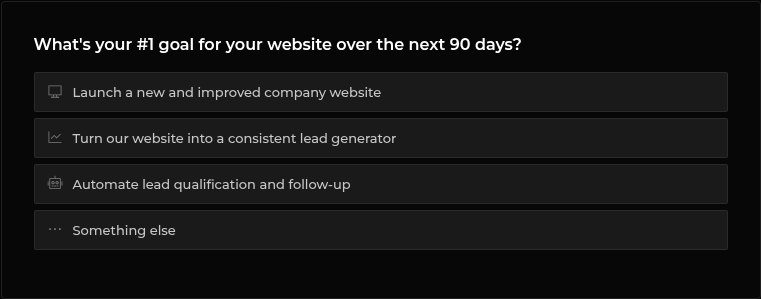
The opening question is:
“What’s your #1 goal for your website over the next 90 days?”
Visitors choose one of four one-click answers:
- Launch a new and improved company website
- Turn our website into a consistent lead generator
- Automate lead qualification and follow-up
- Something else
That answer determines the path:
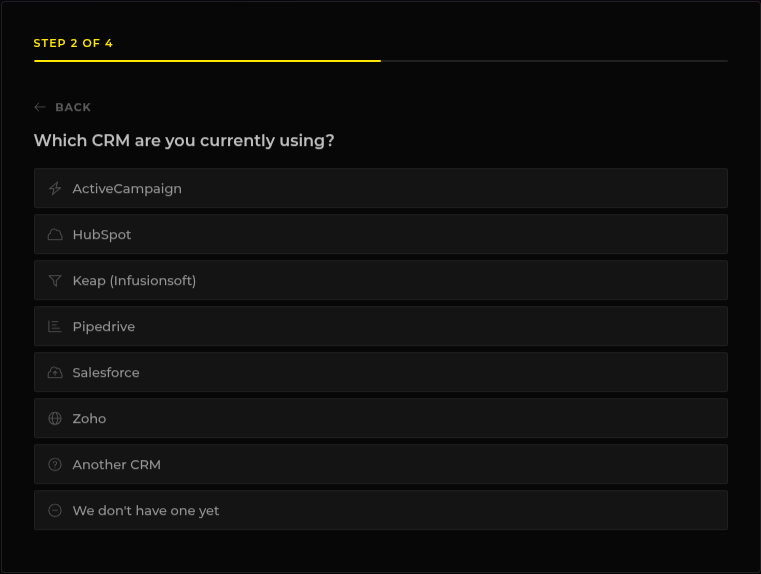
- New website: two one-click questions about CRM or email-list connection and team size.
- Lead generation: two one-click questions about the current CRM and where leads come from today.
- Automation: two questions about where leads get lost and which tools they use, with a multi-select for tools.
- Something else: one short open-text question instead.
The principle is relevance. Someone planning a new website doesn’t have to answer an automation troubleshooting questionnaire.
Progress, contact details, and context
After the first answer, the form displays “Step n of m.” Every later step has a Back button.
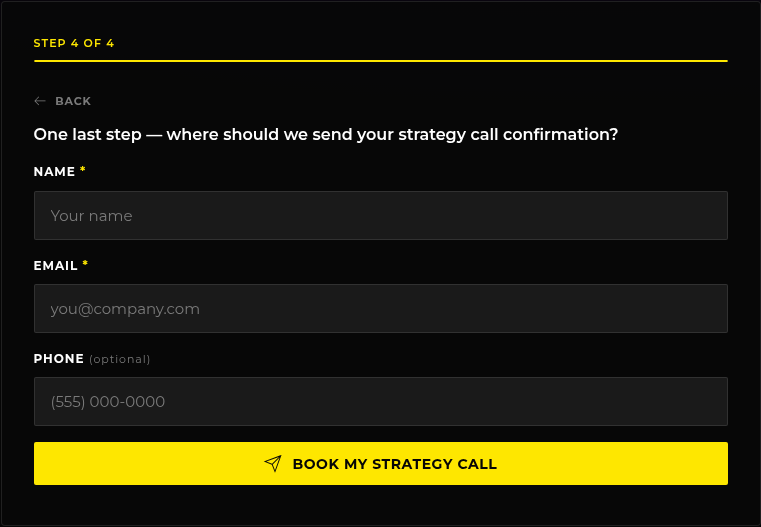
Contact details come last. Only name and email are required; phone is optional.
Hidden fields record the submission page, and every answer travels with the submission. Our team gets the qualifying context without asking the visitor to repeat it.
On submit, the lead goes to our team inbox, posts to a team chat leads channel, and creates a CRM record tagged with the source page. The success panel offers an immediate button to book a 30-minute strategy call.
Annotated homepage screen sequence
Follow the homepage form through these four states:
1. Opening screen: start with the goal
“What’s your #1 goal for your website over the next 90 days?”
The four one-click options come before any contact fields. The first task is choosing a direction, not writing a project brief.
2. Automation path: keep follow-ups relevant
The tools question allows multiple selections. “Step n of m” and the Back button show progress and provide a way to revise an earlier answer.
3. Contact screen: require only the essentials
Name and email are required. Phone is optional. The qualification questions are already complete.
4. Success screen: offer the next step
The booking button offers a 30-minute strategy call. Visitors can continue in the same session rather than waiting for a reply.
The fields and safeguards visitors don’t need to see
Hidden fields preserve context
Record the source page without asking visitors where they found the form. Capture available campaign parameters such as utm_source, utm_medium, and utm_campaign, alongside a stable form ID.
Our homepage build records the source page and qualifying answers. UTM capture is an additional recommendation, not a description of its current implementation.
Carry campaign values into the lead record. Use a consistent form ID in analytics and your CRM so you can compare the same intake across systems.
Validate submitted values server-side. Don’t use hidden fields as authorization controls.
Filter bots without giving people puzzles
The homepage form uses three invisible protections:
- A honeypot field that real visitors leave empty
- Invisible reCAPTCHA v3
- A server-side rate limit
Use layered checks rather than making every visitor solve a puzzle. Monitor rejected submissions for false positives, and test that hidden controls don’t interfere with keyboard or assistive-technology users.
If you plan to text, settle consent first
Before enabling automated texts, have counsel determine what consent your messages, sending tools, and jurisdictions require.
If explicit consent is needed, use a separate, unchecked checkbox near the phone field. Have the wording identify the sender, purpose, expected frequency, and opt-out method.
Keep marketing-text consent separate from the service request. Have counsel review both the wording and how you’ll retain consent records.
What happens after submit: confirmation, routing, and CRM
Treat submission as the start of a workflow. Plan three outcomes:
- Confirmation: acknowledge receipt and offer a useful next step.
- Routing: alert the right person with the qualification context.
- CRM record: save the contact, answers, and source page.
The success panel is a parallel visitor-facing outcome. Don’t make it wait for a salesperson’s response.
For implementation, read lead intake without middleware. For ownership rules, see automated lead routing.
This connects the form to a vertically integrated intake engine, wired directly into your system.
Measuring form abandonment in GA4
GA4 can automatically track form interactions using form_start and form_submit when enhanced measurement for forms is enabled.
The events distinguish first interaction from submission, with parameters such as form_id and form_name available for reporting.
Set up a useful funnel
- Open your web data stream and enable the Form interactions toggle.
- Test every form path. Check that starts and submissions appear with the expected form ID or name.
- Build a funnel exploration using the documented lead-generation steps:
page_view,view_form,form_start, andform_submit. - Confirm how each event is collected before using it. Filter to one form and use a consistent counting unit and completion window.
Abandonment = (starts − submissions) ÷ starts, using matched counts from the same funnel.
Keep a separate check for accepted submissions arriving in your CRM. Don’t treat the analytics event as your delivery test.
Read the drop-off
Use the funnel to decide what to investigate:
- View → start: visibility, relevance, or an intimidating opening.
- Start → submit: required fields, errors, mobile usability, or unnecessary steps.
- Submit → CRM: delivery failures, not visitor abandonment.
For a multi-step flow, consider custom step events to narrow the investigation. Compare completion with qualified inquiries, not submission volume alone.
FAQs about B2B lead capture forms
A lead capture form collects visitor information with the goal of turning interest into customers. For a B2B service firm, use it to capture contact details and project context. Choose questions that help your team assess fit, route the inquiry, and prepare a useful first response.
Use the fewest fields that support a qualification or routing decision. For consultative services, start with required name and email, with phone optional. Add project questions only when their answers change the next action. Save detailed specifications, inventories, and procurement documents for later conversations.
Choose multi-step forms when different services need different questions and branching can skip irrelevant work. Use a single-step form for one service with a few essential fields. Test each approach against completion and qualified inquiries. Don’t add screens unless they make the visitor’s task clearer.
Ask what the visitor needs, whether it fits your services, and what affects the next step. Construction firms might ask project type and location; engineering firms, discipline and phase; fleet providers, vehicle class and fleet size. Require timing or budget only when it changes your response.
Use your own baseline rather than a generic target. Compare matched start and submission counts across similar traffic sources, devices, and form paths. Investigate changes alongside qualified inquiries and successful CRM delivery. A higher completion rate shouldn’t be the only reason you keep a form change.
Map contact details, qualification answers, and hidden source fields to your CRM fields. Submit through a server-side integration, validate inputs, filter spam, and plan for failed deliveries. Test that a real submission creates the correct record and alerts the responsible team before calling the form finished.
Start by asking your team which missing answer slows down the first response. That’s a stronger starting point than adding fields because another form has them.
If you want your website to behave more like a full-time inbound employee, we can help map your intake.